

Search and shortcuts
Surrealist offers a range of shortcuts to help you navigate the interface more efficiently. You can find a list of all available shortcuts by pressing Ctrl + K or Cmd + K on your keyboard.
In the search modal, you can access all available shortcuts for open sessions, the views, all available tables in your connect database and the settings dialog.
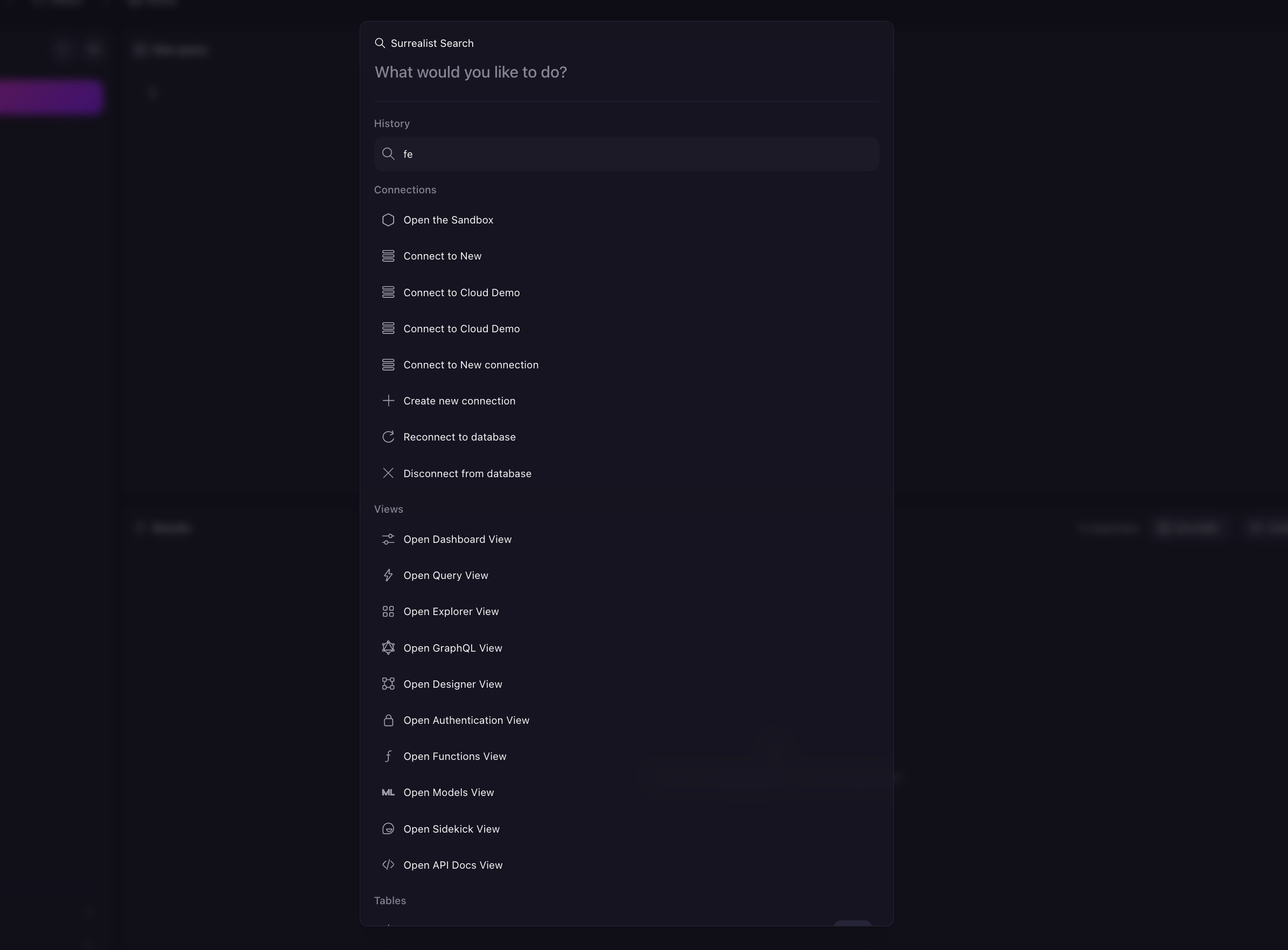
| Options | Description |
|---|---|
Connections
| Open a list of all available connections and create a new connection type. |
Views
| Open all available views in the current session. This can be the Cloud view, GraphQL view, Query view, Designer view or the Authentication view. |
Tables
| Shows all available tables in the connected database. If you have no tables in the connection, load the Surreal Deal Store dataset, you can see the tables in the dataset. |
Query
|
See all saved queries, view the query history and create a new query. Comment out a line in the query editor using Cmd + / or Ctrl + /.
|
Explorer
|
Import and export your database schema in a .surql file format.
|
Authentication
| Create user permissions and roles for your connected database. |
API Docs
| Access the SurrealDB API documentation and access snippets for your queries in different SDK languages. |
Settings
|
Access the Settings dialog to customise the appearance and behaviour of Surrealist.
Increase the view size of your editor with cmd + Option + + or reduce with cmd + Option + -.
|
Navigator
| Reload the navigator to see all available shortcuts and open the search modal. |
Developer
| Open a new connection and reset tour settings. |